I. Introduction
Hey guys, welcome back! In this article, we're going to dive into how you can connect your Shopify store with Printify.com to create and sell custom products for your print-on-demand business. Let's get into it!
A. Brief explanation of Shopify and Printify
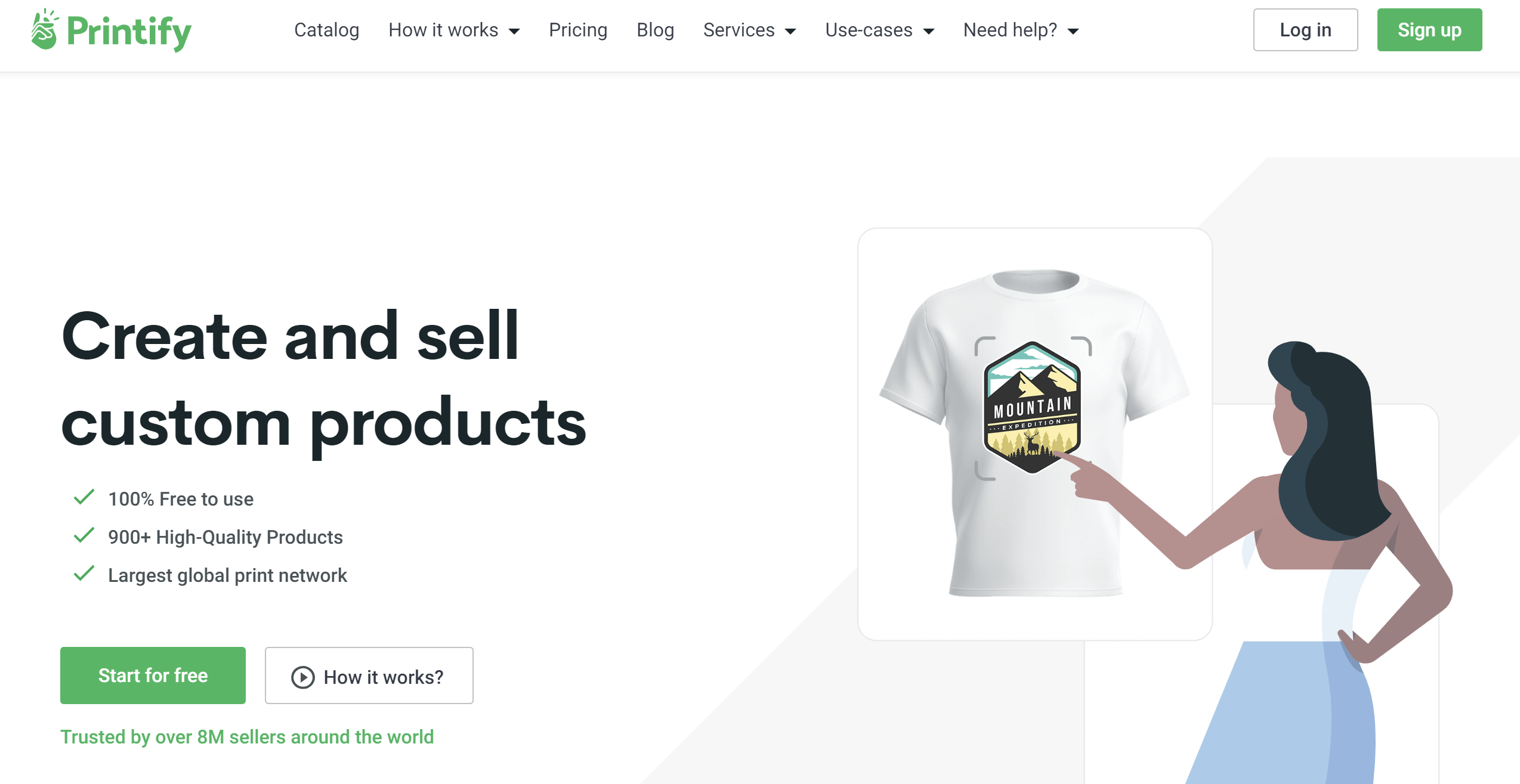
First things first, let's break down what these platforms are. Shopify is a popular e-commerce platform that allows you to create and run your own online store. On the other hand, Printify is a print-on-demand service that lets you design and sell custom products without holding inventory.
B. Benefits of connecting the two platforms
By connecting Shopify with Printify, you're opening up a world of possibilities. You'll be able to create custom products like t-shirts, mugs, phone cases, and more, and sell them directly through your Shopify store. The best part? Printify handles the printing and shipping, so you can focus on designing and marketing your products.
C. Overview of what the article will cover
In this guide, we'll walk you through the entire process of connecting your Shopify store with Printify, step by step. We'll cover setting up your accounts, two different methods to connect the platforms, and even how to create your first product. So, let's get started!
II. Setting Up Your Accounts
Before we can connect Shopify and Printify, we need to make sure you have accounts on both platforms. Don't worry, it's super easy to get set up!
A. Creating a Shopify store
If you already have a Shopify store, great! You can skip this step. If not, head over to Shopify.com and click on the "Start free trial" button. You can create an account using your email address or even your Google account. It's quick and easy to get started, and there's already a video on the channel showing you how to create a store on Shopify if you need more help.
B. Signing up for a Printify account
Now, let's set up your Printify account. Go to Printify.com and click on the "Sign Up" button. You can enter your email address, set up a password, and click "Sign Up" to create your new account. Just like with Shopify, you can also use your Google account to log in if you prefer. Once you're signed up, you'll land on your Printify dashboard where you'll be able to start creating products.
Alright, now that we have both accounts set up, we're ready to connect Shopify with Printify and start creating some awesome custom products!
III. Method 1: Connecting via Printify
Alright, now let's get into the first method of connecting your Shopify store with Printify. This method starts from the Printify side of things.
A. Navigating to the Printify dashboard
First up, head over to your Printify dashboard. Once you're logged in, look for the account option in the top right corner. Click on that, and you'll see a few options pop up.
B. Adding a new store
From those options, select "My Stores". This is where the magic happens! Click on "Add new store" and you'll see a bunch of different integrations available.
C. Selecting Shopify integration
Scroll through the options until you find Shopify. That's the one we want, so go ahead and click on it.
D. Entering Shopify store URL
Now, Printify is going to ask for your Shopify store URL. Don't worry, this is easy to find. Just head back to your Shopify admin page and copy the URL from the address bar. Paste that URL into Printify and click "Connect".
E. Installing the Printify app on Shopify
Once you've entered your URL, Printify will redirect you to install their app on your Shopify store. Just click "Install app" and follow the prompts. You'll need to log into your Printify account one more time, and boom! You're connected!
IV. Method 2: Connecting via Shopify App Store
Now, let me show you another way to connect Shopify with Printify. This method starts from the Shopify side of things.
A. Accessing the Shopify App Store
First, log into your Shopify admin. Look for the "Apps" option in the left sidebar and click on it. Then, scroll down until you see "Visit the Shopify App Store". Click on that to open up the App Store.
B. Searching for Printify
Once you're in the Shopify App Store, use the search bar at the top to look for "Printify". It should pop right up in the results.
C. Adding the Printify app to your Shopify store
Click on the Printify app in the search results, then hit the "Add app" button. Shopify will ask you to confirm that you want to install the app. Just click "Install app" again and you're good to go!
D. Logging into your Printify account
After the app is installed, you'll need to log into your Printify account. Remember that account we set up earlier? This is where you'll use those login details. Enter your email and password, click the "I'm not a robot" checkbox, and hit "Sign in".
And there you have it! Whether you choose Method 1 or Method 2, your Shopify store is now connected to Printify. Pretty easy, right? Now you're all set to start creating and selling custom products on your Shopify store. In the next section, we'll walk through how to create your first product using Printify. Let's keep going!
V. Creating Your First Product
Now that we've got everything connected, let's dive into creating your first product on Printify and getting it onto your Shopify store. It's easier than you might think!
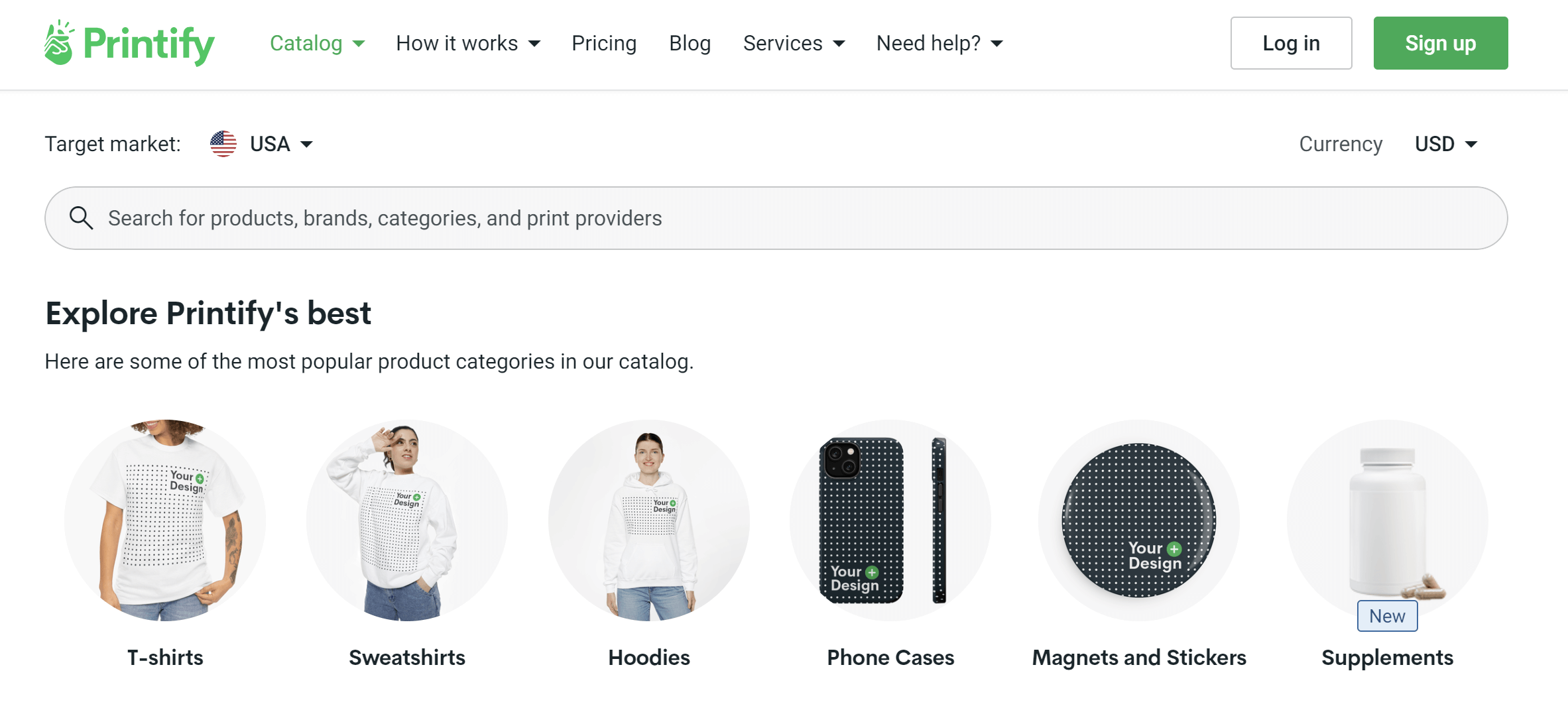
A. Browsing Printify's product catalog
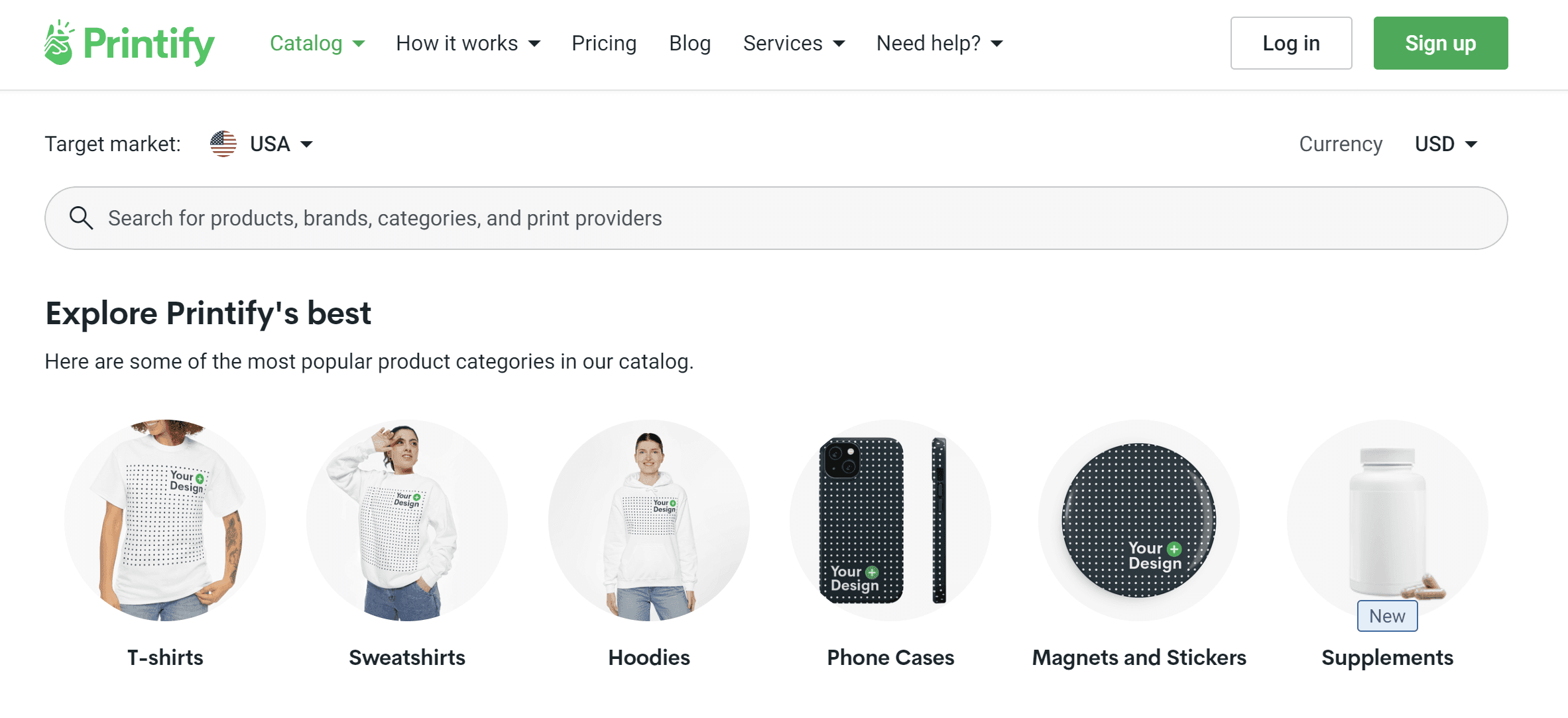
First things first, head to your Printify dashboard and click on "Browse products". You'll see a ton of categories - we're talking men's clothing, women's clothing, kids' stuff, accessories, home and living, you name it. For this example, let's create a t-shirt.
B. Selecting a product to customize
Let's go with men's clothing and then t-shirts. You'll see a bunch of options - I'm going with the unisex soft style t-shirt, but feel free to pick whatever catches your eye.
C. Designing your product
Alright, here's where the fun begins! Click on "Start designing" and you'll see the front and back of your t-shirt. Now you've got a few options for adding your design:
- Uploading designs: Click on "Upload design" to add your own artwork from your device. Super easy!
- Adding text: Want to add some text? Just click on "Add text" and type away.
- Using Printify's graphics: Don't have your own design? No worries! Scroll down to "Graphics" and you'll find a bunch of pre-made designs you can use.
For this example, I'm going to upload a design for the front of the shirt. Just drag and resize until it looks good to you.
D. Setting product variants and pricing
Once your design is set, click on "Product variants". Here you can choose which sizes and colors you want to offer. You can also set your pricing - remember to factor in Printify's costs and leave room for profit!
E. Publishing the product to your Shopify store
Happy with how everything looks? Great! Click "Save product", give it a title and description (Printify will auto-generate these, but feel free to tweak them), add some tags, and hit "Publish". Boom! Your product is now live on your Shopify store.
VI. Tips for Success
Now that you know how to create products, here are some tips to help you make the most of your Printify and Shopify integration:
A. Exploring Printify's product range
Don't just stick to t-shirts! Printify offers over 800 products. We're talking phone cases, mugs, towels, even car accessories. The more diverse your product range, the more chances you have to make sales.
B. Utilizing high-quality designs
Your designs can make or break your products. If you're not a designer yourself, consider hiring one or using high-quality stock graphics. Remember, these designs are representing your brand!
C. Optimizing product descriptions and tags
When you're setting up your products on Shopify, take the time to write detailed, engaging product descriptions. Use keywords that your potential customers might be searching for. And don't forget about tags - these help your products show up in searches both on and off your site.
And there you have it, folks! You now know how to connect Shopify with Printify, create your first product, and set yourself up for success. Remember, the key is to experiment, see what works for your audience, and have fun with it. Don't be afraid to try new designs or products - you never know what might be your next bestseller!